Wake on LAN
Being a believer in the "put everything in your PC so you don't carry around a gaming laptop" mentality has its downsides.
Sometimes, you need to be away from your PC for an extended period of time. Work, school, family, and other social obligations—the works.
But sometimes, during these away-from-keyboard times, you suddenly need to access your PC. Not necessarily to game, mind you, but to retrieve a file, log in to a service whose password you only keep locally in a browser, start a download with a totally legitimate file-sharing protocol, or edit photos on Lightroom Classic because you refuse to give Adobe money for cloud features. You know, simple human stuff.
You can just leave your PC on for days on end and remote in via AnyDesk, Chrome Remote Desktop, TeamViewer, or Windows RDP, but what if you are gone for days? Weeks? Months? Epochs? All those electric pixies would just be wasting away, heating up an empty room.
Well, the solution is, of course, Wake-on-LAN!
Wake-on-LAN (hereafter WoL) is a protocol invented by smart people at AMD and HP back in the '90s more on its history here. It works by sending a "magic packet" to a computer on a network. You can see how this is useful. Commercially, AnyDesk implements this in its clients.
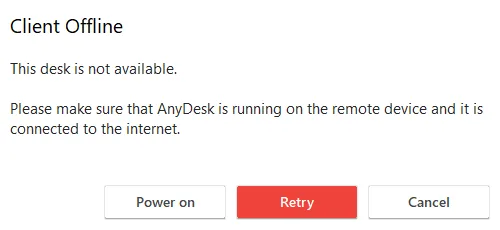
AnyDesk's Wake-on-LAN option, "Power On"
The issue is that there needs to be another device, awake and ready, on the same local network as the "desk" you want to "power on".

Ouroboros - By Unknown author - Chrysopoea of Cleopatra (Codex Marcianus graecus 299 fol. 188v), Public Domain, Link
And therefore, we have an Ouroboros. I would need to have some client always on in my room to be able to wake up my PC. Turning on a laptop would be a waste. AnyDesk installed on a RasPi seemed like... a bad idea.
However, you know what device is always home anyway?
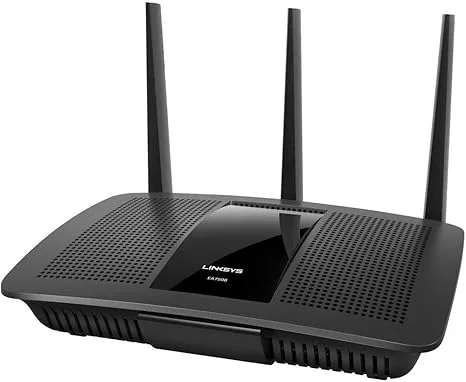
Linksys EA7500, taken from an Amazon listing.
That's right! A router!
"But Francis", I hear you ask,
"How could you possibly reach your router from outside your home and have it send this so-called "magic" packet to your PC?"
First came the "I just graduated Computer Networks" solution:
Have the router establish a reverse SSH tunnel to a VPS that opens port 22 to bypass residential internet's lack of a public static IP. Then, SSH into said VPS using a phone/laptop and send the packet.
Good solution. Spartan, but it works.
But wait, how does your router make SSH tunnels in the first place?
Let me introduce you, my friend, to:
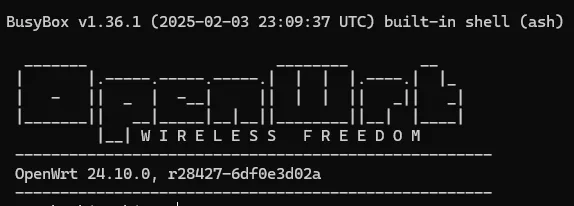
OpenWRT "Wireless Freedom"
OpenWRT
OpenWRT lets you install Linux on your router. Not full-fat Ubuntu, of course, but you can SSH from it!
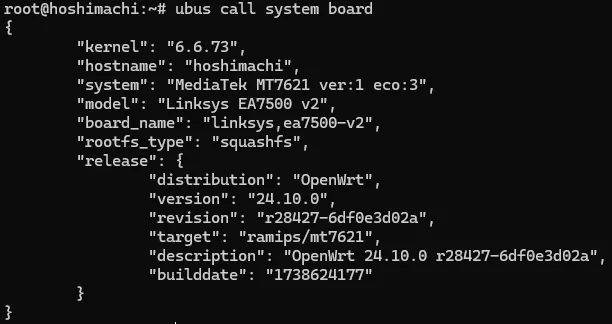
Living, breathing, dinosaurs recent Linux kernel - probably not John Hammond, Jurassic Park
So now I can SSH into my home server. But this depends on my device having SSH capability. What if I am doing this on a public client, say, a computer at an internet cafe? I don't want to put an SSH key pair there! (It also depends on the always-alive SSH tunnel, which cannot be promised.) There is also an issue of feedback. There is no way to tell whether the message was actually sent.

Command to send WoL, etherwake. No feedback at all.
Being a "web dev" by trade necessitates a "proper" way of doing this. Creating a web app!
Instead of having to SSH manually to the router, we make the router bind a port on the VPS through reverse SSH:
VPS localhost:2222
  → encrypted SSH tunnel
  → router localhost:22
This way, even though my room is behind a NAT (thus having no public static IP), the router can be accessed by the VPS via:
ssh -p 2222 root@127.0.0.1
From there, we build a "shit-on-a-shingle" website. Literally, a button that says "Wake PC".
(No image remains, sadly; I yeeted that already.)
The website was made using uhttpd and Flask. When the button is pressed, it calls Flask and executes:
ssh -p 2222 root@127.0.0.1 \
  '/usr/bin/etherwake -i br-lan [PC's MAC address]'
And all of this was defended by simple nginx auth.
Well, it works, but it's not exactly the most secure. Not really robust, either. Originally, the reverse tunnel was maintained by autossh; sometimes, it coughed up blood, and I couldn't access my PC for a week. Fun.
Not the most useful, either, even on "happy paths". If I need to turn my PC on quickly, after pressing the WoL button, AnyDesk and Chrome Remote Desktop would take minutes to refresh the status and notice the PC is on. Also, technically, with this approach, if the VPS is ever compromised, welp, that's sayonara.

Not so smart, is it now? Sourced from Reddit; who knows who made it first?
Therefore, we need three things:
- A safer, more locked-in way for the web app to send the command to the router
- A more robust way to connect the VPS and the router
- A way for the web app to tell if the PC is up
Wake-on-LAN, take two
Part 1: a safer way
SSH is fine. Giving the VPS a key pair that logs in to root unrestricted, not so much. Therefore, we restrict what an SSH session with the key pair from the VPS can do as follows:
command="/root/wol-key-command",
no-agent-forwarding,
no-port-forwarding,
no-X11-forwarding,
no-pty
This forces the SSH session to run only /root/wol-key-command. It can never get a PTY, run sudo rm -rf /, or download and extract a zip bomb.
Part 2: a more robust way
Instead of relying on autossh, we use WireGuard. In other words, we are making our own VPN!

In your face, ███ VPN!
You know what, I am not even going to try explaining the context; just watch the video.
The setup is as follows:
- The VPS has a public IP, 38.xx.xxx.xx, where it runs WireGuard on a specified port
- The router, on startup, connects via UDP to said WireGuard service on said port
- Within the VPN, the VPS uses address 10.6.0.1
- Within the VPN, the router uses address 10.6.0.2
Those are the only hosts they can reach. There should be no way the VPS is able to reach "beyond" the router, i.e., to play with my "smart" lights.

Nosferatu!
Still taken from SpongeBob SquarePants episode "Graveyard Shift"
p.s. Do you ever wonder what psychedelics the writers for early SpongeBob were taking?
With WireGuard, the flow is now:
Flask on VPS
  → SSH to root@10.6.0.2 over WireGuard
  → router verifies the special WoL key
  → login forces exact etherwake command
This is better than autossh -R, as it is a kernel-level uplink, not a (forced) long-lived SSH session that a watchdog has to rebuild if it croaks. There is also no giant open port forwarding enabled. WireGuard is secure as well because it uses peer keys. Even if someone found out the exact IP and exact port, random UDP traffic without the key would not grant router access.
Part 3: a more useful way
This is... relatively simple. The naïve way would be to check if the PC's MAC address has an active DHCP lease:
ubus call dhcp ipv4leases
or check via ARP:
ip neigh show [ip of PC]
But DHCP being DHCP:
- Checking the lease does not work if the PC has a static lease
- Checking ARP works better, but entries may be cached and become stale.
The solution is actually dead simple. Good old ICMP:

It's just a PING!!!
Taken from GayaTekno
Remember this? You're old now.
We now add one exact command that the SSH session is allowed to run: ping to the PC's static address. On the router side, it triggers:
if ping -c 1 -W 1 [PC static address] >/dev/null 2>&1; then
  echo online
else
  echo offline
fi
Result:
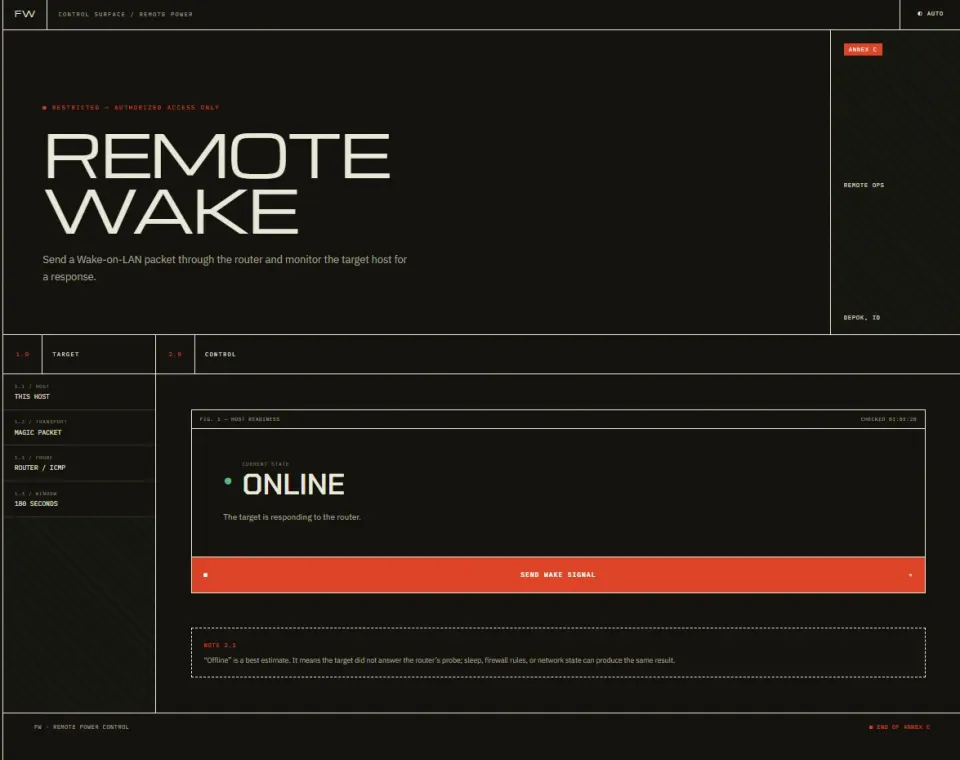
Now we have a UI that reports the target PC's status!
Behind the somewhat fine FE (I can't design to save my life, bruv), the Flask app is KISS:
from datetime import datetime, timezone
import subprocess

from flask import Flask, jsonify, redirect, render_template, request


app = Flask(__name__)

SSH_BASE = [
    "ssh",
    "-i",
    "/etc/wol/wol_key",
    "-o",
    "BatchMode=yes",
    "-o",
    "ConnectTimeout=5",
    "-o",
    "StrictHostKeyChecking=yes",
    "-o",
    "UserKnownHostsFile=/etc/wol/known_hosts",
    "root@10.6.0.2",
]
WAKE_COMMAND = "/usr/bin/etherwake -i br-lan [hardcoded MAC]"


def router_command(command):
    try:
        return subprocess.run(
            SSH_BASE + [command],
            capture_output=True,
            text=True,
            timeout=10,
        )
    except subprocess.TimeoutExpired:
        return None


@app.route("/api/status", methods=["GET"])
def status():
    process = router_command("status")
    value = process.stdout.strip() if process and process.returncode == 0 else "unknown"
    if value not in {"online", "offline"}:
        value = "unknown"
    return jsonify(
        status=value,
        checked_at=datetime.now(timezone.utc).isoformat(timespec="seconds"),
    )


@app.route("/", methods=["GET", "POST"])
def wol():
    if request.method == "GET":
        return render_template("index.html")

    process = router_command(WAKE_COMMAND)
    if process and process.returncode == 0:
        return redirect("/?watch=1", code=303)

    if process is None:
        exit_code = "timeout"
        output = "The router did not respond before the request timed out."
    else:
        exit_code = process.returncode
        output = (process.stdout or "") + (process.stderr or "")

    return render_template(
        "error.html",
        exit_code=exit_code,
        output=output,
    ), 502
Simple. Fewer lines than when I took my web programming and design course. Of course, most of it is hardcoded. It's not every day that my PC changes MAC addresses... right?

mfw i finally get around to updating this ever so important, but still godforsaken util.
Haru Urara moment 2 by YinYonYun on X